




Power BI is business intelligence software from Microsoft that helps organizations turn their raw data into useful visualizations and reports for informed decision making. Whether you’re a small business, enterprise or analytics as a service (AaaS) provider, Power BI makes data meaningful so that you can view trends and discover insights, then share them with others with ease.
Power BI Embedded is a service that allows teams to embed Power BI content into their own applications or websites. This means that you can set up dashboards inside a customer portal or embed analytics inside a web app (like Reporting Hub!). Power BI Embedded gives flexibility to deliver meaningful data insights right to your users without them ever having to leave your application.
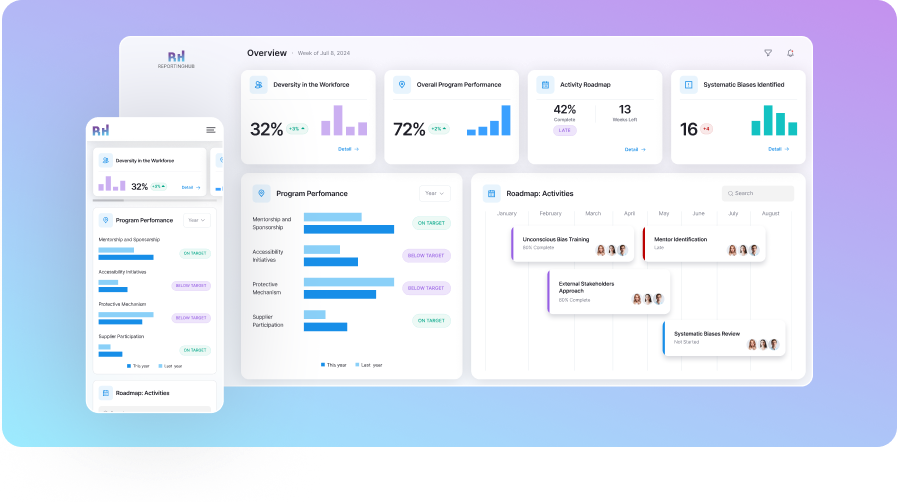
Simplify Power BI Embedded with Reporting Hub
Power BI Embedded can be quite complex for non-technical users due to its advanced configuration and integration requirements, making it challenging to set up and maintain. The Reporting Hub simplifies this process by offering a turnkey solution that deploys Power BI Embedded reports seamlessly. With The Reporting Hub, users can access powerful data visualizations without needing to navigate the technical intricacies, allowing them to focus on insights rather than implementation.
Understanding Power BI Embedded
Power BI Embedded, developed by Microsoft Azure, is a service that makes embedding fully interactive Power BI reports and dashboards into custom applications possible.
The Benefits of Power BI Embedded
- Easy Integration: Power BI Embedded integrates effortlessly into your applications, ensuring a smooth and consistent user experience.
- Scalability: Effortlessly scale your analytics as your business grows, with the flexibility to meet changing demands.
- Customization: Customize reports to align perfectly with your brand identity, delivering a consistent look and feel across your platform
- Security: Leverage Azure’s top-tier security features to safeguard your data, ensuring comprehensive protection across all levels.
Use Cases Across Industries
Power BI Embedded is versatile and used across various industries:
- Finance: Embed financial dashboards for real-time portfolio tracking.
- Healthcare: Share patient data analytics securely within healthcare applications.
- Retail: Integrate sales and inventory reports into POS systems.
Preparing Your Power BI Reports
Start by building your reports in Power BI Desktop. Ensure that your data models are optimized for performance, and your visuals are designed to communicate the key insights effectively.
Best Practices for Optimizing Reports
- Use aggregations to enhance performance.
- Implement row-level security to control access to sensitive data.
- Compress your data to reduce load times.


Setting Up Power BI Embedded
Before you can use Power BI Embedded, you need:
- A Power BI Pro license and a premium capacity that supports embedding.
- An Azure subscription.
- A Power BI workspace set up in the Power BI service.
Create an Azure AD App
Register your application in Azure Active Directory to manage permissions.
Generate Embed Tokens
Use Power BI REST APIs to generate tokens that allow users to access the embedded content.
Set Up Power BI Embedded in Azure
Allocate the required capacity in Azure, and link your Power BI workspaces to this capacity.
- REST APIs: Allows for more complex and customizable integrations.
- Power BI SDKs: Simplifies embedding for developers familiar with specific programming languages.
Publish your report in Power BI service
Generate the embed URL using the Power BI portal.
Use an iframe or SDK to embed the report into your web application.
Customization
You can tailor the embedded reports to match your application’s style by manipulating the iframe settings or using the JavaScript API.
Managing and Sharing Embedded Reports

Configuring User Roles and Permissions
Assign roles within your application to control who can view or interact with specific reports. Use Power BI’s security features to enforce these roles at the data level.

Sharing Securely
Embedded reports can be shared with different stakeholders by configuring the embed tokens correctly, ensuring that each user sees only the data they are authorized to view.
Monitoring and Management
Use Power BI and Azure tools to monitor the performance of your embedded reports, manage capacities, and optimize user experiences.
Troubleshooting Common Power BI Issues
Embedding Power BI inside your application will enhance the user experience, although it comes with its own set of issues you may run into. Here are some common problems you may encounter and ways through which you could resolve these:

Authentication and Authorization Errors
Users might encounter errors related to authentication, such as being unable to view the embedded reports or receiving unauthorized access messages. Solution:
- Check Azure AD permissions: Make sure your Azure Active Directory (AAD) app is properly configured to have the necessary permissions for the operation to be executed. It will check whether the user or service principal has access to the Power BI Workspace and report.
- Correct Token Generation: When generating embed tokens, ensure that the tokens are correctly scoped. Embrace dataset and report permissions to allow access to embedded content.
- Token Expiry: Ensure the embed tokens are not expired. Embed tokens have a limited lifespan, so they must be regenerated periodically or configured with appropriate expiry periods.

Performance Bottlenecks
Reports may load slowly or have delayed responsiveness, which can degrade the user experience. Solution:
- Optimize Data Models: Ensure that your data models in Power BI are optimized by reducing dataset size, removing unnecessary columns, and using aggregations where possible.
- Enable Query Caching: Power BI Premium capacities offer query caching, which can significantly speed up loading times for frequently accessed reports.
- Monitor Resource Usage: Use Azure monitoring tools to track resource utilization of Power BI Embedded capacities and scale up when required.

Cross-Browser Compatibility
Embedded reports might not render correctly across all browsers or devices. Solution:
- Update Browsers: Power BI has been optimized to work with the following modern browsers: Chrome, Edge, and Firefox. If users experience difficulties, then ensure that the browser is kept updated.
- Responsive Design: Assists in making designs of reports embedded in applications responsive so they can adjust according to different screen dimensions and orientation.
- Enable Cookies and JavaScript: Third-party cookies may be blocked or JavaScript might be disabled by some browsers.

Data Refresh Issues
Users might see outdated data in the embedded reports, indicating issues with data refresh. Solution:
- Scheduled Refresh: Verify that the Power BI dataset has a scheduled refresh configured. This ensures that the data remains up to date.
- Direct Query Mode: If real-time data is required, consider using Direct Query mode instead of importing data. This allows the report to query the data source in real time, though it may impact performance.
- Refresh Notifications: Set up alerts and notifications in Power BI to be informed if a scheduled refresh fails, allowing you to address the issue promptly.

Embedding Errors with iFrames
The embedded Power BI report may not display correctly or could be blocked when using iFrames. Solution:
- Correct Embed Code: Double-check the embed code generated from the Power BI portal. Ensure that all necessary parameters are included and correctly configured.
- Cross-Origin Resource Sharing (CORS): If your applications is hosted on a different domain than Power BI, make sure that CORS is configured right on your web server. This will help keep the browser from blocking any embedded content based on your security policies.
- iFrame Settings: Customize your iFrame settings to adjust parameters such as width, height, and visibility to better fit the embedded report into your application.

Version Compatibility
Using an outdated version of Power BI SDKs or APIs might lead to compatibility issues. Solution:
- SDK Updates: Regularly update your Power BI SDKs and libraries to the latest version to ensure compatibility with the newest features and security updates.
- API Deprecations: Stay informed about any deprecations or changes in Power BI REST APIs. Microsoft often updates these APIs, and using deprecated methods can result in functionality loss.
Bringing it All Together
Putting it all together, when using Power BI Embedded, you’ll be able to embed Power BI reports into your application and provide rich data visualization organizational and fully interactive. Having setup, security, and management best practices will help you increase the value of your application while maintaining full control over your data.
Want to see it in action?
Embed your Power BI reports today and experience how you can change the way you start delivering insights to your users right away. Get started now.